You can improve a form by using Field Groups to group related items together. . We’ll demonstrate this by adding another field to the Student Tipo . We’ll add a field for the student’s extracurricular activities.
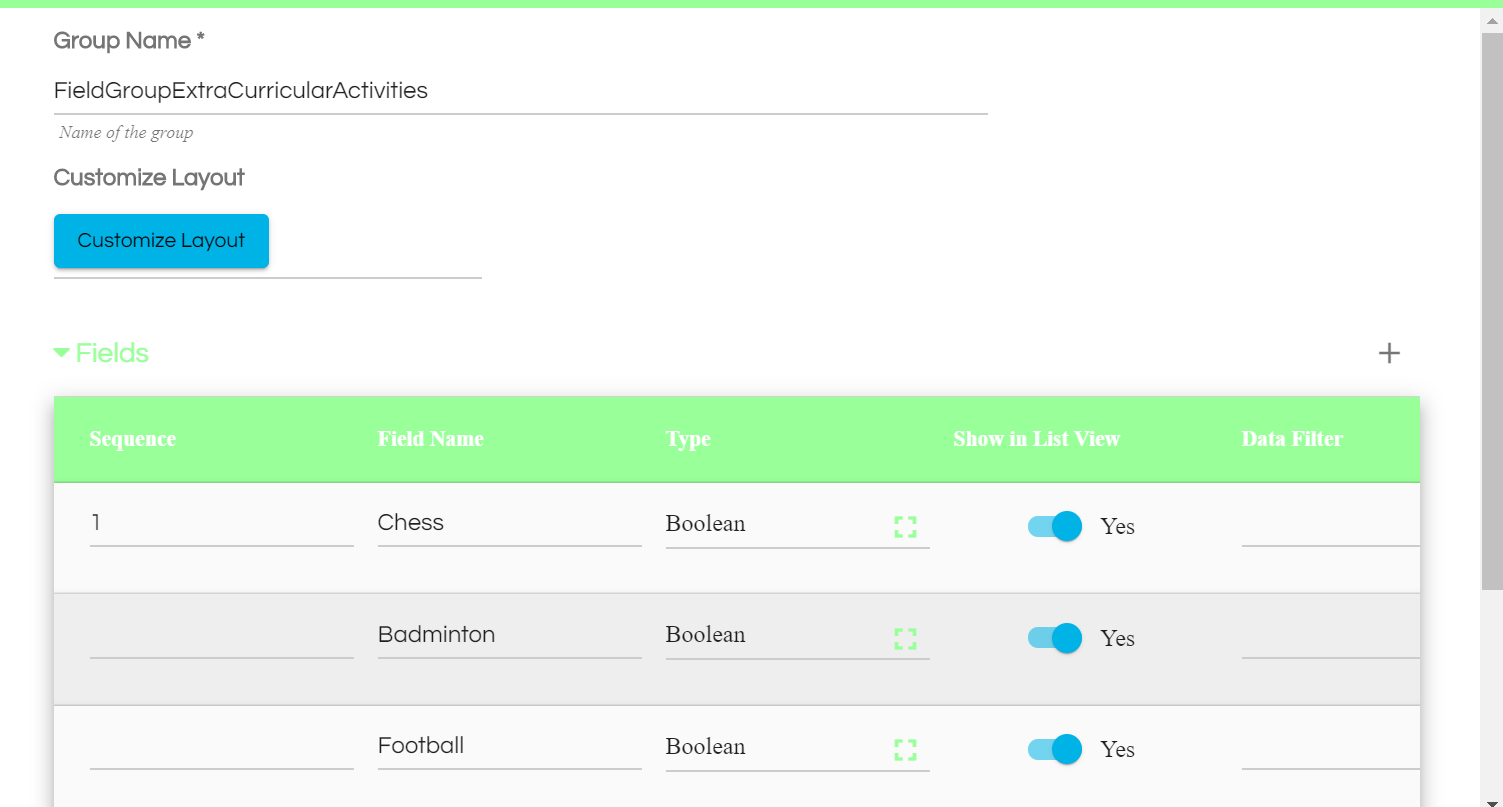
Go to Manage Tipos, select the Student Tipo and enter edit mode. Scroll down to the Field Groups section and click on the + control to add one. Name it Extra-Curricular-Activities. The name of the field group should not have any whitespace characters. So far when creating a field, Tipo or an application, you have been able to have spaces in the name, but this is not so for the Field Group name. Including spacing in the name will result in a bug.
Go to Field Groups Tab you just added and then add the following two fields to it. Note that their Type is Boolean and their Show in List View has been turned on. You can add as many extra curricular activities as you want.
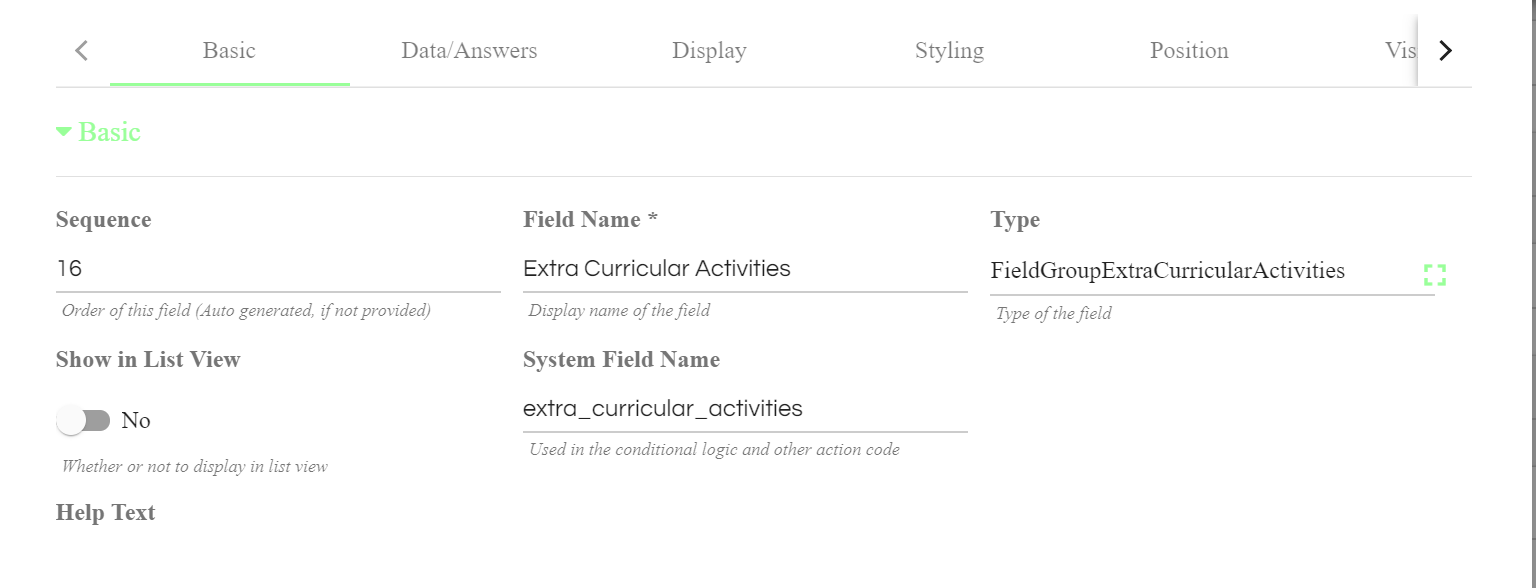
After adding Fields to that Field Group, go back to the main Editor and Add a new Field to the Tipo. Name it Extra Curricular Activities And set its Type to Extra-Curricular-Activities. You’ll find this option added in the Type selector menu under the Field Groups section.
Save the changes and open up the Student form again to see the created form group.

Comments
0 comments
Please sign in to leave a comment.