The look and feel of an application greatly impact the experience of its users. Nowadays accessible, convenient, and easily understandable apps are the most sought after.
TipoTapp users are not only provided the tools and objects necessary to build custom business apps, but also the additional support for personalized CSS classes in styling applications.
This support includes the ability to use numerous built-in CSS styles and integrate user-defined CSS classes into our app.
Uploading Custom CSS
As mentioned, aside from built-in CSS classes, we can also integrate user-defined CSS classes into our TipoTapp application.
By providing users the ability to define and integrate their preferred CSS classes, the potential for a better and more personalized application increases.
To upload custom CSS classes, go to the Customization page in your developer perspective.

The Customization page is where you can configure the visual settings of your application; color scheme, fonts, and sizes, as well as upload custom CSS file containing your CSS classes.
Note: This process requires that a CSS file be prepared beforehand.
Second, select Edit, and go to the Custom CSS section.
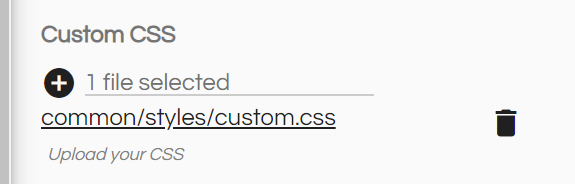
This section is where you will be uploading your external CSS file.
Select the Upload Content button, the + icon.
A dialog will pop up where you can select and upload a file.

Drag and drop your CSS file into the dialog, then select Start Upload.
Save the changes.
The page will refresh to incorporate the changes that we have made.
After the page refreshes, we can now verify if our custom CSS classes have been integrated into the system.

Refer to our developer docs for a detailed guide on how to verify uploaded CSS classes.
Now that the custom CSS file has been uploaded and integrated into your application, you can now use the different classes in the file.
To illustrate how users can utilize custom CSS classes, we will be modifying some of the styling for the Student Management App.
Customizing The Interface
To demonstrate how to style your application, let's go and edit the Student tipo.
Proceed to the expanded view of the Course field.

In the expanded view, proceed to the Styling tab.
The Styling tab is where you customize the CSS styling of the field, in this case the Course field of the Student tipo.

In the tab, you will see a sections for the CSS Style and CSS Class.
The Styling tab also has separate sections to modify the style of the Element, Label and Value of the the field.
It is also worth noting that the Styling tab has a Style Preview section, where a preview of the settings that you will indicate will be be provided.
Using Built-in CSS Styles
TipoTapp has predefined CSS styles that you can use to define the size and color that you want; border, font, background and foreground color, and many more.
For this example, say we want to change the Font size of a Course field to small.
To use the predefined style, go to the Choose Value CSS Style, and from the dropdown list.

and select the Deepskyblue.
After selection, the chosen style will be shown, and the corresponding CSS script will be loaded on the Value CSS Style section.

Save the changes.
To test if our configuration worked, we will go to the app Home.
Here, we proceed to the Student page.
You will observe that the color for the Course of a student has changed.

We have just applied a predefined CSS style to the Course field of the Student tipo.
There are numerous built-in CSS styles that users can use to customize different aspects of their apps; font size, color, background color, and many others.
Customizing Built-In Styles
Aside from using predefined styling, we can also modify part of the built-in styling.
Say we want to have the Value of the Course field be in Red, instead of Blue.
To do this, go to the developer perspective and edit the Student tipo.
In the Styling tab, scroll down to the Value CSS Style section.
The Value CSS Style text field is where the CSS style for the value of the field is encoded.
In the Value CSS Style, change "deepskyblue" to "red".

Here, we are setting the 'color' to have the value of 'red'.
TipoTapp applies the code that is indicated within the Value CSS Style text field.
Save the changes that were have made.
To check the output, go to Student in the application Home.

Here you can see that the Course has turned red, as we have specified in the styling.
Utilizing Custom Classes
Another way of configuring the styling of your application is to use custom CSS classes.
In the first part of this guide, we have uploaded an external custom CSS file containing our user-defined classes.
These classes has then been integrated into our app.
For this example, we will set the font size of our text to be 30 pixels.
To apply this class, go to the Choose Value CSS Class, and from the dropdown list, select Simple class.
Upon selection, a sample of the syntax to be followed will appear on the Value CSS Class section.

From the CSS classes listed in our external CSS class, we will be using f-s-30 .
This class denotes that the fonts size of the field will be of size 30 pixels.
Save all changes.
Note: The class used is in custom CSS code uploaded for this guide, and are intended to show how custom classes can be applied. Users are not limited to this and have the freedom to choose the classes that they prefer.
To see how our configuration will look, go to the Student section in Home.

Here, you will see the change in the font size.
Aside from the simple class, there are 2 other types of ways what you can apply classes in customizing the style of your application;
- Dynamic Class
- Evaluation Expression
Dynamic Classes uses a series of conditional functions in determining the styling to be applied.
Evaluation Expressions perform similarly to Dynamic Classes, however, it employs the structure of if-then-else function in indicating the CSS style to be applied to the page.
Both Dynamic Class and Evaluating Expression open up avenues for wide-range customization for business apps.
For this example, if we wanted to have all Computer Science courses be in Red, and others in Blue, we can definitely apply it using either class.
Dynamic Class:

Evaluating Expression:
Note: Using _labels enables the expression to apply the styling to the actual field label, in this case the course name.
The difference would mainly be in the expression, but using either will produce the same output.
With these tools, only your vision for you business app is the limit to its customization.
It would be best to have a clear picture of how the look and feel of the application will be, so that customization will be a breeze.
Comments
0 comments
Please sign in to leave a comment.