As such, ‘Detail View’ and ‘Create’ and ‘Edit’ forms are divided into a default maximum of three columns on desktop; two columns on tablet; and a single column on mobile devices.
You can see this in the image below. The fields are arranged in three columns and each field takes up a single column.

Increase single field width
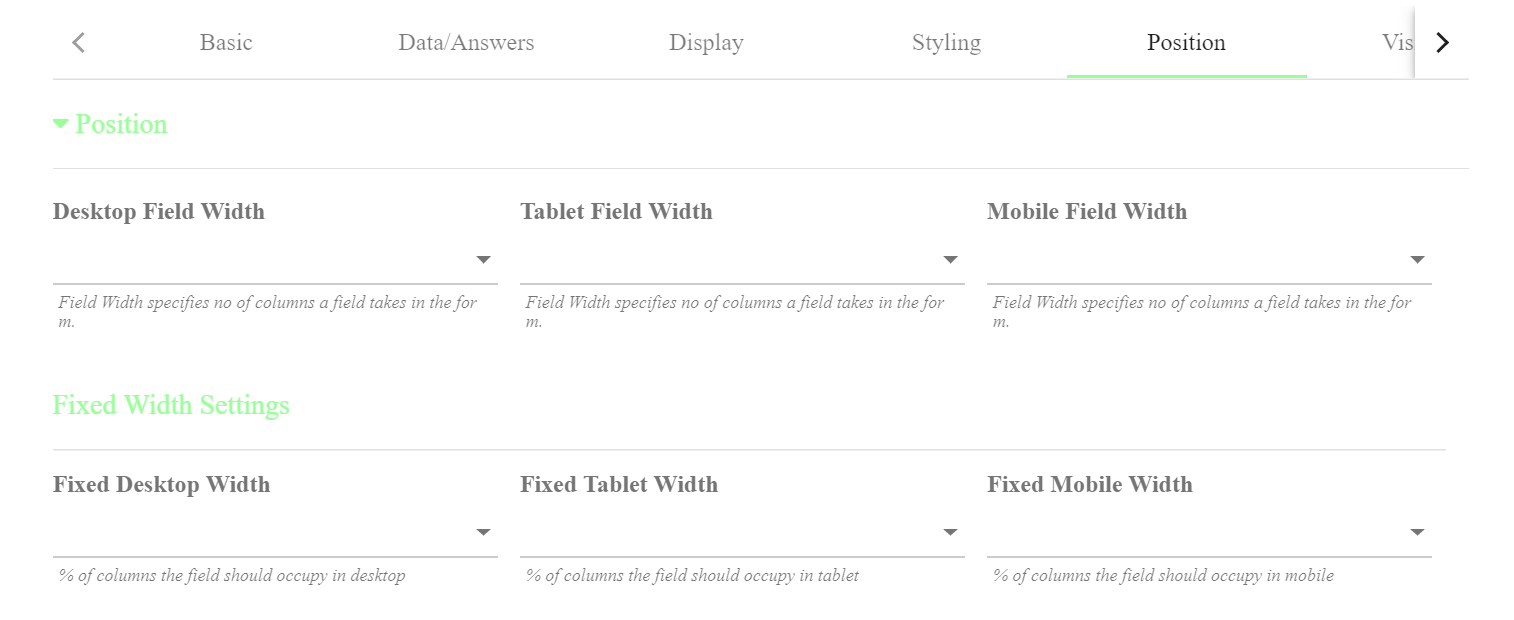
You can change the width of a field by setting its Form Width field. To do this, go to Manage Tipos and select the Tipo you want to modify. Go into Edit mode and expand the field whose width you want to modify. In our case, we’ll modify the First Name field of the Student Tipo. Go down to the Position Settings section and select 2 as its Form Width. Form Width specifies how many columns a field takes in the form. Click on Save
When you bring up the form again, you’ll see that the First Name field is now rendered with a width of two columns.

As mentioned, by default, forms are divided into 3 columns, but we’ll see later how to change the number of columns for your views when we take a look at Flow and Grid layouts. Regardless of how many columns a form has, the Form Width of a field will determine how many of those columns the field takes up.
Below is an example you can see a 5 column form with a First Name field with a Form Width of 3.

Comments
0 comments
Please sign in to leave a comment.